
We can give you the fastest and most accurate price for channel letters and laser cutting when we receive a correctly prepared artwork file. This artwork guide explains step by step how to prepare your file as CorelDRAW 18 (CDR) or PDF.
Accepted file types
- CorelDRAW 18 (CDR) – if you use a newer version, choose Save As → Version 18.0.
- PDF – exported as vector with all text converted to curves.
Image files such as JPG or PNG cannot be used for accurate production; the artwork must be vector.
Step by step
- Use 1:1 scale: draw the artwork in real size (cm or mm). A 40 cm letter must be 40 cm in the file.
- Convert text to curves: select all text in CorelDRAW and press Ctrl + Q.
- Clean up the lines: remove overlapping, open or unnecessary lines so every letter is one closed shape.
- Write technical notes inside the file: colour, letter height, quantity, depth, LED / lighting type and material.
- Save and send: save as CDR (version 18) or PDF and send it via the quote form or WhatsApp.
Notes to write in the file
- Type: chrome, stainless steel, gold chrome, acrylic, aluminium, trim-cap…
- Lighting: non-illuminated, front-lit, back-lit (halo) or both
- Colour / finish: mirror chrome, satin, gold, acrylic colour
- Letter height and depth (cm)
- Quantity (sets / pieces)
- LED colour (cool white, warm white, coloured)
Checklist before sending
- Is the file CDR (version 18) or PDF?
- Is the artwork 1:1 scale?
- Is all text converted to curves?
- Are the technical notes inside the file?
- Is the file smaller than 15 MB?
Five common mistakes in the artwork guide
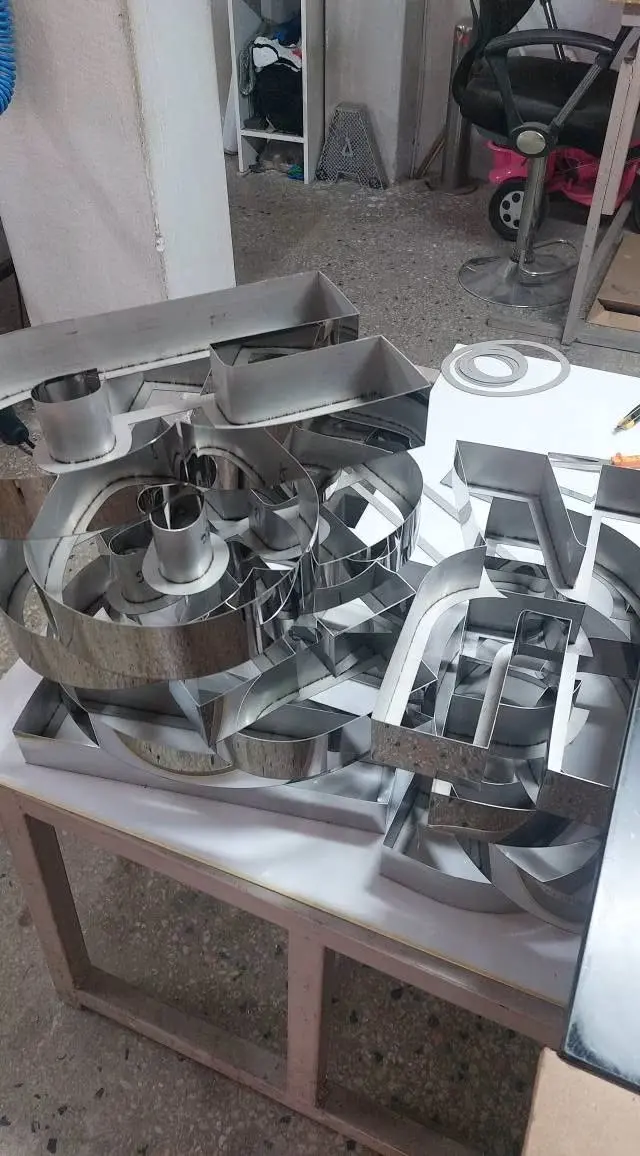
Machines read vector drawings directly, so small file errors can delay a quote. Check these points before sending:
- Text not converted to curves – fonts may change on our computer.
- Drawing not at 1:1 scale – letter heights are read wrongly.
- Logo placed as JPG/PNG – images cannot be cut.
- Overlapping font outlines – after converting, counters may fill in; weld the shapes and check.
- Missing notes – colour, depth, light, LED colour and quantity should be written in the file.
What if I am unsure?
Send the file anyway; we check it and tell you what is missing.
If you are not sure whether your file is ready, send it anyway – we check every file before quoting and tell you what is missing.
A complete, correctly prepared file is the fastest way to an accurate quote and a smooth production.
Thank you for preparing your file carefully – it helps us quote quickly and produce exactly what you need.
We are happy to help if you have questions about your file.
Frequently asked questions
I only have a logo image (JPG/PNG). What should I do?
Accurate production is not possible from image files. Ask your designer or printer for the vector version (CDR or PDF). If you do not have one, contact us and we will discuss the options.
Why do I need to convert text to curves?
If text is not converted and we do not have the same font, the letters open in another font and the dimensions change. Curves look the same on every computer.
Which CorelDRAW version should I use?
Save the file as CorelDRAW version 18. In newer versions choose 18.0 in the Save As dialog.